Copy This First
In the previous step, you opened the first version of your website on your own computer.
Do not start by studying Cloudflare. Do not look for GitHub by yourself. Do not upload a dist or build folder.
Send this to Codex:
I can open this website locally now.
Please help me publish it to a free public URL.

Requirements:
1. First check whether the current project can build.
2. Check whether any obvious file should not be public.
3. You decide whether the next page should be GitHub, Cloudflare, or another page.
4. If you can open a browser or URL, open the page where I need to act.
5. If the page needs sign-in, Google account selection, authorization, or confirmation, stop and wait for me.
6. Do not ask me to manually upload dist, build, or any other build output folder.
7. Do not ask me to find the entry point inside GitHub or Cloudflare by myself.
8. If a page needs build command, output directory, repository name, or project name, give me the exact value.
9. After deployment succeeds, tell me which public URL to check.

I am not a programmer.
Only tell me the current action. Do not give me the whole technical background at once.
This is the main step. The rest of the article is for the pages you may see next.
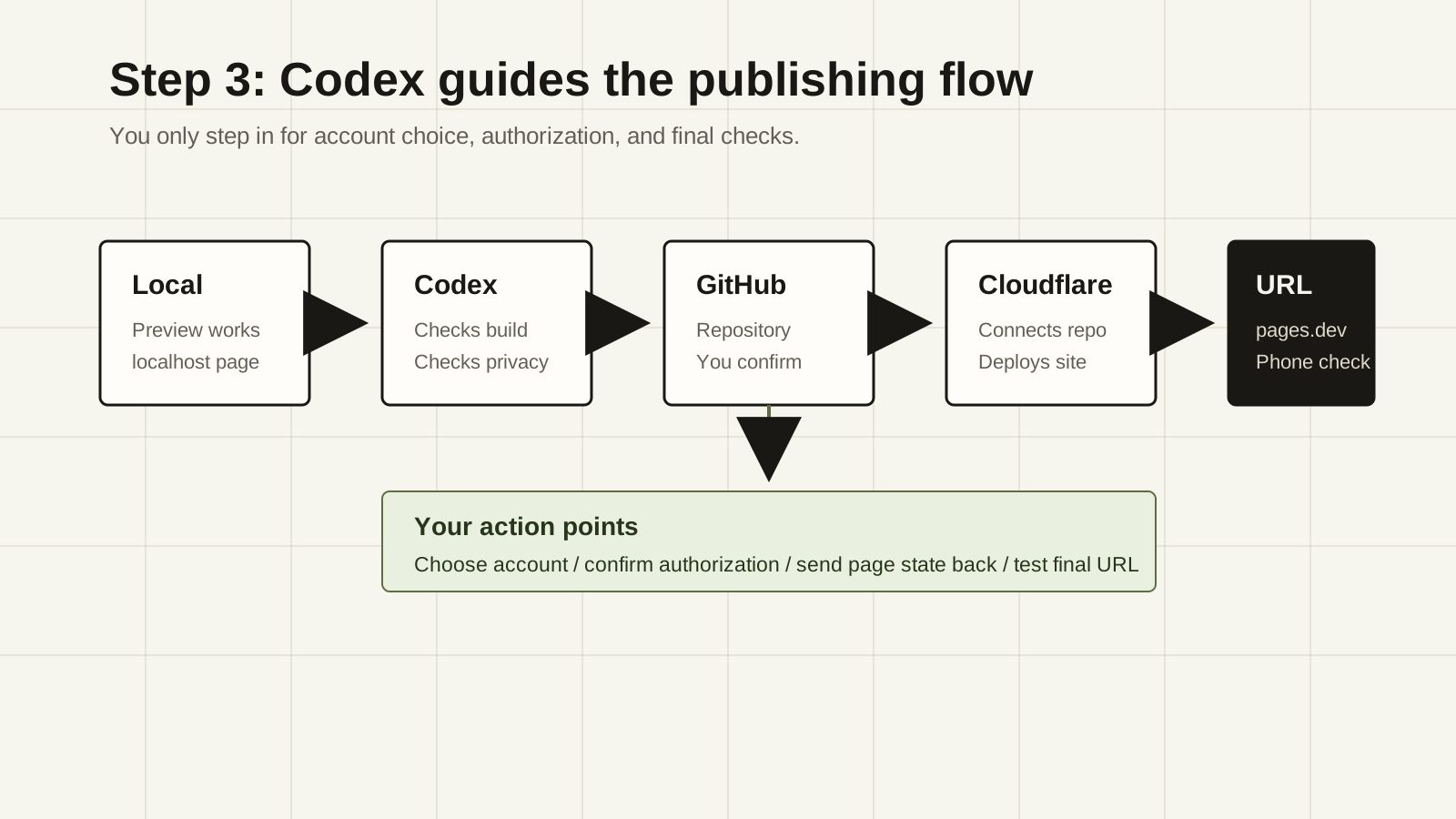
You Are Not Holding The Map
In this step, Codex should be the guide.
The flow should feel like this:
You: I want to publish.
Codex: I will check the project first.
Codex: I will open the next page.
You: I choose an account or confirm authorization.
Codex: I continue with the repository, build, and deployment.
You: I get a pages.dev URL.
Your work is small:
- choose a Google account or existing account;
- check which app is asking for access;
- confirm when the page asks you to confirm;
- send the page state back to Codex when a field needs a value.
Do not hunt through websites for the right entry point. Codex should do that.
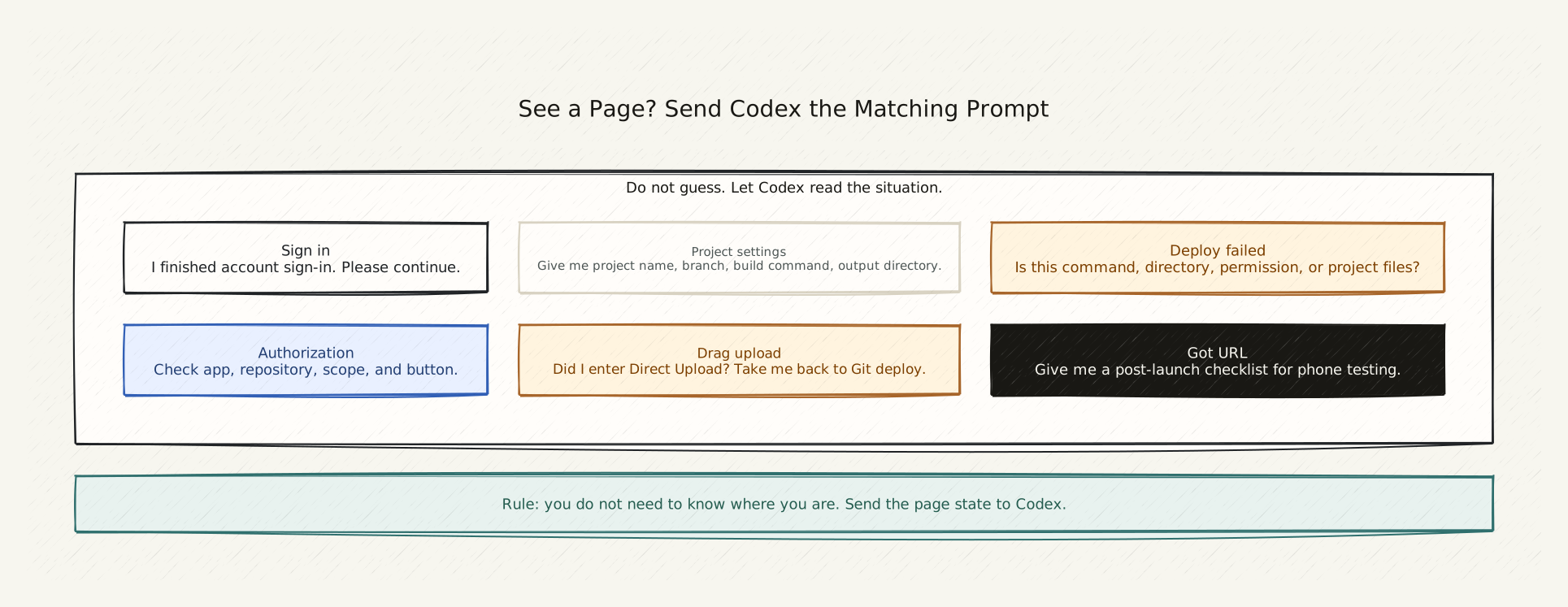
If Codex Wants To Check The Project First
That is normal. Let it check.
Reply:
Yes, check the project first.

Only inspect the current directory:
- whether it can build locally;
- whether it has .gitignore;
- whether any file should not be public;
- if publishing to Cloudflare Pages, what the build command and output directory are.

After checking, tell me which web page needs my confirmation next.
This is not about learning commands. Codex is checking whether the site can be published safely.
If Codex Opens An Account Page
You may see GitHub, Cloudflare, or Google sign-in.
Do not study the platform. Just handle the account choice.
If your Google account is shown, choose the account you want to use for the site.
When done, go back to Codex and send:
I finished the account sign-in or account selection.
Please continue.
If the next page asks for authorization, tell me the two details I should check.
The two details are:
- who wants access;
- which repository or project it wants to access.
If you do not understand the page, send Codex the screenshot or page text:
I am looking at a sign-in or authorization page, but I am not sure whether I should click.
Based on this page, tell me:
1. which website this is;
2. what it wants me to authorize;
3. which button I should click;
4. whether there is any obvious risk.
If The Page Asks For Authorization
An authorization page often means Cloudflare wants to read the GitHub repository so it can deploy the site.
You do not need to understand every permission. Ask Codex to inspect the situation:
The page is asking for authorization.
Please confirm:
1. whether this connects GitHub, Cloudflare, or both;
2. whether the repository is this personal website;
3. whether I can limit authorization to this website repository;
4. which button I should click to continue.

If the authorization scope is too broad, tell me to stop.
If Codex says it is fine, then confirm.
If The Page Asks For Project Settings
Cloudflare Pages may ask for:
Project name
Production branch
Build command
Build output directory
Do not guess.
Send the fields to Codex:
Cloudflare Pages is asking me for:
- Project name
- Production branch
- Build command
- Build output directory

Based on the current project, tell me what to enter for each field.
If you can fill them directly, fill them and stop before final confirmation.
If you cannot fill them directly, give me a copyable table.
The answer should look like this:
Project name: my-personal-site
Production branch: main
Build command: npm run build
Build output directory: dist
The exact values may differ. Let Codex inspect the project.
If You See A Drag-And-Drop Upload Page
If the page asks you to drag a folder, upload dist, or upload build, pause.
Send:
I am seeing a drag-and-drop folder upload page.
Did I enter the Direct Upload route?

I do not want to manually upload build output.
Please take me back to the GitHub + Cloudflare Pages authorization route.
Tell me which page to return to and which entry point to choose.
Direct Upload can work, but it should not be the default route for this beginner series. The easier long-term path is letting Codex handle the repository and deployment connection.
If Deployment Fails
You may see a red error. Do not guess.
Send:
Cloudflare Pages deployment failed.
The error I see is:
paste the error text or screenshot content

First explain it in ordinary language.
Then tell me whether it is:
1. a wrong build command;
2. a wrong output directory;
3. a repository or permission issue;
4. something in the project files that needs to change.

Give me the smallest fix.
Do not rebuild the whole site.
Many failures are just a build command, output directory, or permission mismatch.
If You Get The URL
When deployment succeeds, Cloudflare usually gives a URL such as:
https://your-project.pages.devSend it to Codex:
I got this public URL:
paste URL

Please give me a post-launch checklist.
Focus on:
1. whether the home page opens;
2. whether the about page opens;
3. whether the work or writing list opens;
4. whether contact information is correct;
5. whether the site is readable on a phone;
6. whether any address, ID document, child's school, contract, client dashboard, or private screenshot appears.
Then open the URL on your phone. Use mobile data if you can.
Done Means This
This step is complete when:
- you have a free
pages.devpublic URL; - it opens on your phone;
- the main pages work;
- GitHub and Cloudflare Pages are connected;
- future updates do not require manually uploading folders;
- no obvious private material is public.
At this point, the site is no longer just a local experiment. It is on the web.
The domain comes next: Step 4: Add a custom domain only when it helps.
References
Public social links