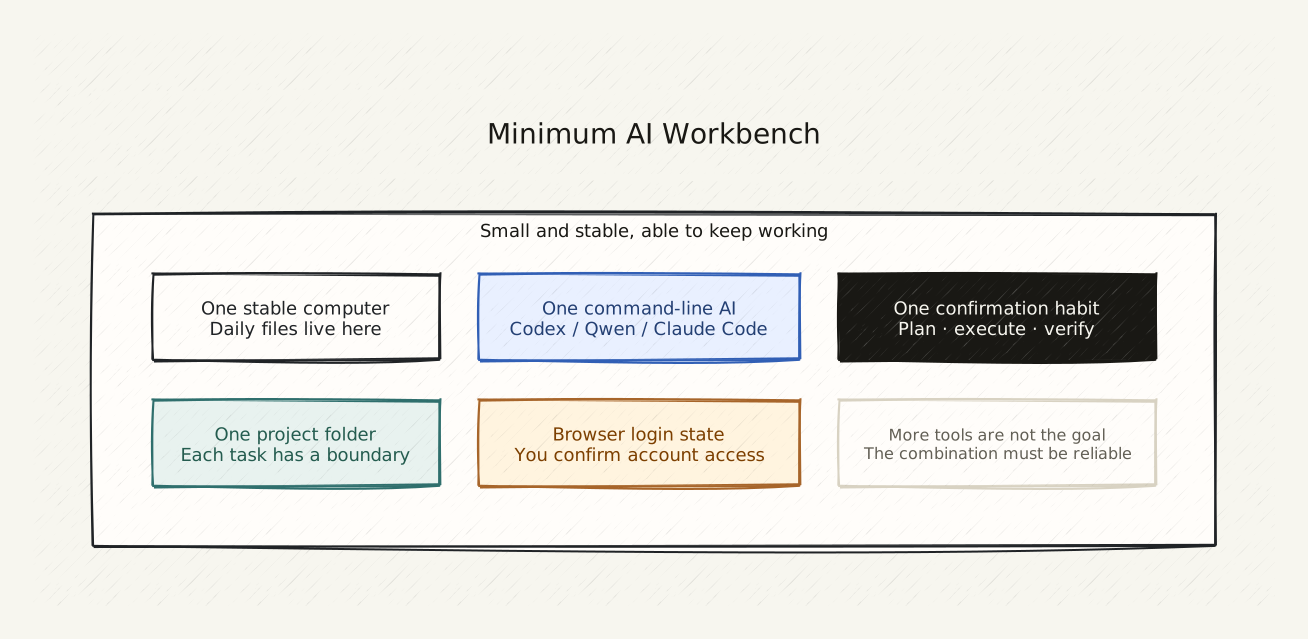
One Clear Statement
You do not need every tool. You only need a combination that reliably gets things done.
Five Elements of the Minimum Setup
1. One Stable Computer
No high-end specs needed, no gaming required. Any computer that can run a browser — except a Chromebook — will do.
Key point: The computer you use every day is your fixed work environment. Files live here, Codex runs here, results come out here.
2. One Project Directory
Every project you are working on gets its own folder.
Habit: Do not store files on the desktop or in the Downloads folder. Before starting any task, confirm you are in the correct project directory.
Example project directory structure:
/
├── my-site/          ← personal website project
├── my-resume/        ← resume project
├── article-draft/    ← article drafts
└── research-notes/   ← research notes
3. One Command-Line AI Tool
Recommended: Codex (OpenAI’s official CLI)
Why not an app or web version: Apps and web versions do not know what is on your computer. CLI can read your directory, edit your files, and run the commands you need.
How to install:
Ask Codex to tell you how to install Codex CLI on your current computer.
I am using [your operating system, e.g. macOS / Windows].
4. One Browser with Logged-In Accounts
Log into the websites you need: GitHub (if using Codex to build sites), Cloudflare (if publishing websites), social media accounts (if publishing content).
Habit: Codex will tell you when needed: “Please log into this page in your browser.” If your browser is already logged in, you just click through instead of searching for the login page.
5. One Habit: Check First, Confirm, Then Verify
This is the most important element.
| Step | What to Do |
|---|---|
| Check first | Codex says it is going to do something — ask Codex to tell you what it plans to do first |
| Confirm | The steps look reasonable and you understand what it is doing |
| Verify | Codex is done — you look at the result and confirm the file was created or the website opens |
Connecting to the Personal Site Series
A personal website is the best example for ordinary people to understand the AI workbench.
It includes:
- Files (text, images, styles)
- Website (local preview, live link)
- Accounts (GitHub, Cloudflare)
- Deployment (publishing live)
- Social sharing (sharing the link)
If you want to practice the AI workflow with a real project, start here: First Personal Site with Codex
A Reusable Prompt
If you want to set up an AI workbench for each new project:
I want to set up an AI workbench in this directory.

Please help me:
1. Confirm what type of project this directory is good for
2. Tell me what Codex can do in this directory
3. Suggest a project structure (where to put files)
4. Tell me the very first thing I should do after launching Codex for the first time
How to Know You Are Done
You do not need to remember every configuration detail.
After reading this page, you only need to do one thing:
Confirm you have a project directory — even an empty folder — can open the terminal, and can launch Codex.
If you can do that — your AI workbench is already set up.
Next: AI Glossary for Ordinary People (Long-term, maintained) — the series appendix for long-term reference.
Hint: A workbench does not need to be complete on day one. Get one that works first, then add things gradually. For example, use Codex to build a website first, then add a notes tool to manage prompts, then add browser bookmarks to manage accounts — these are all part of the workbench.
Public social links